Booking Calendar for Photographers: How to Get the Most Out of It
A booking calendar for photographers can become one of the most useful tools for organizing your sessions and making it easier for your clients to book your services. But to make it work, it’s not enough to simply display a few available dates on your website: it’s important to set it up with your actual business operations in mind.
With Arcadina’s Booking service, you can create different campaigns and session types, set schedules and availability, manage bookings received through various channels, and keep your work schedule organized. Plus, your clients can view the sessions you offer on your website, choose from available dates and times, and complete the booking process online.
In this guide, we’ll explain how to set up and use your booking calendar to adapt it to your workflow, better organize your sessions and campaigns, and offer your clients a much simpler booking process. We’ll also cover a series of practical recommendations to help make Booking a truly useful tool in the day-to-day operations of your photography business.
Your booking calendar doesn’t just organize your sessions—it can also help you streamline your business management and make things much easier for your clients.
Before setting up your booking calendar, organize your photo sessions
The first step to making your booking calendar for photographers truly useful is deciding which services you want to offer through it. Not all photographers work the same way or need to show the same availability.
A family photographer might offer newborn, maternity, children’s, or family sessions year-round. However, certain seasons, such as Christmas or First Communion, require a different approach because they involve a high volume of bookings concentrated over specific weeks.
Before you start organizing your schedule, it’s also important to be clear about what this system can bring to your business. In this article, we’ll explain the benefits of offering online bookings for photographers and how they can help you automate part of your session management. This upfront planning will make it much easier to set up Booking later on and, most importantly, will help your clients quickly understand what services they can book.
Create campaigns to organize your different photo sessions
On Booking, you can organize your services into campaigns. For example, you can create a campaign for Christmas, First Communions, newborn photography, family photography, or any other specialty you offer. This approach is particularly useful when you work with seasonal photo sessions. Instead of having all your sessions available year-round, you can prepare each campaign in advance and activate it when the time is right.
This way, your booking page adapts to your business calendar, and you can also use it as a tool to promote specific photo sessions at certain times of the year.
Offer Different Types of Sessions Within the Same Campaign
Within a single campaign, you can create several types of sessions. For example, for Christmas, you could offer a basic session and a more comprehensive one, each with its own features. For each type of session, you can specify details such as the title, description, duration, price, and availability.
Here, it’s also important to consider the customer experience. Use names that are easy to understand, clearly explain what each option includes, and avoid creating too many alternatives if they don’t actually offer significant differences. The easier it is to compare options, the easier it will be for a family to find the session they need and proceed with the booking.
Set up your calendar’s availability based on how you work

One of the biggest mistakes when using a booking calendar for photographers is opening up too many time slots simply because they’re available. Your availability should reflect how you want to organize your work—not just the gaps in your schedule.
With Booking, you can set a general schedule and then tailor the availability for your different types of sessions. For example, you can reserve mornings for newborn sessions, schedule family sessions on specific afternoons, or dedicate several weekends exclusively to a Christmas campaign.
You can also block out days when you don’t want to accept bookings. This way, the calendar that clients view shows only the options you can actually offer.
Keep in mind the actual duration of each photo shoot
When setting up a session, don’t just think about the time you’ll spend taking photos. A photo shoot may last an hour, but you’ll likely need time beforehand to set up the studio and afterward to pack up, reorganize the space, or rest before your next client.
Setting the duration of photo sessions correctly helps prevent an overly tight schedule and allows the calendar itself to control which time slots can be booked. This detail becomes even more important during busy periods with many consecutive sessions, such as Christmas, First Communions, or school photo sessions.
Block off the days you need to set aside for other tasks
Your schedule isn’t made up solely of sessions. You also need time to edit, assist clients, handle administrative tasks, set up sets, or simply rest. Use calendar blocks to set aside those times and prevent new appointments from slipping in.
Good organization isn’t about filling every available slot, but about deciding in advance how much time you want to dedicate to each part of your business.
Turn your booking page into a showcase for your photo shoots

When a client visits your booking page, they shouldn’t just see a calendar. Before choosing a date, they need to know what they’re booking. That’s why it’s important to pay attention to how each photo shoot is presented. Use a representative photo, a recognizable name, and a description that clearly explains the session’s features.
You can also include any information that helps the client make a decision before accessing the calendar. A well-designed booking page can function as a mini sales page within your website: it introduces the service, addresses common questions, and guides the visitor toward selecting a date and time.
Make it easy to choose a date and time
Once the client has decided which session they want to book, the calendar will show only the dates you’ve set as available. By selecting one of those days, they can view the available time slots and choose the one that best suits their needs.
This part of the process should be particularly straightforward. If you organize your schedule properly through the dashboard, the customer won’t have to ask you which afternoons are available or suggest several dates until you find a time that works for both of you.
Consolidate all bookings in your calendar, including those that come through other channels
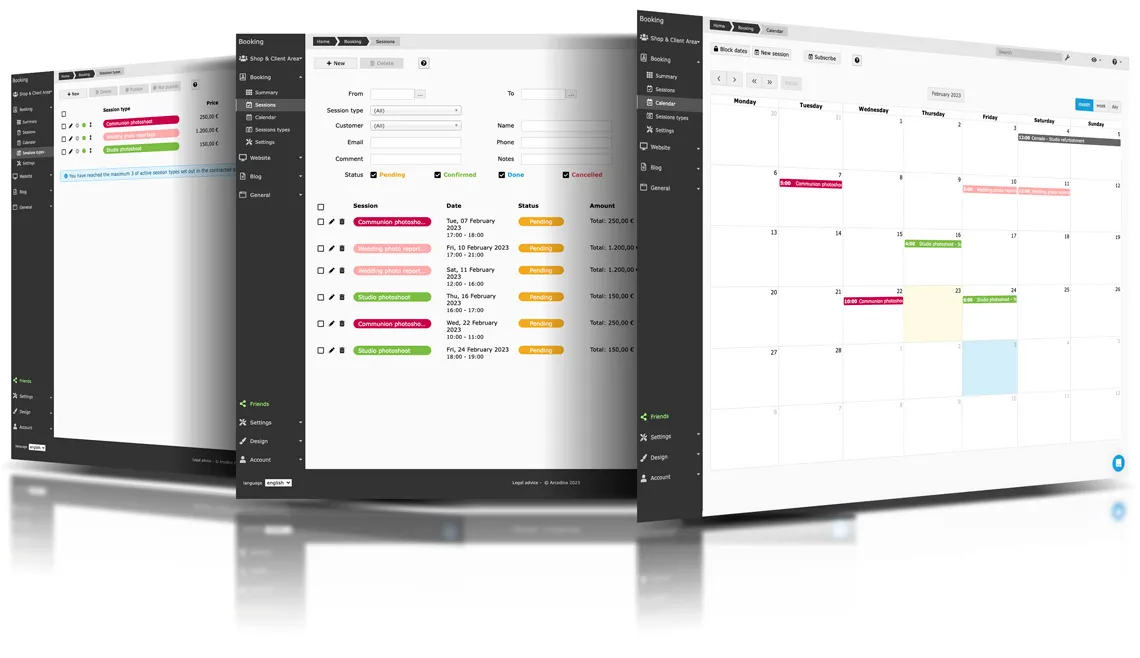
Having an online calendar for photographers doesn’t mean that all bookings will necessarily come through your website. A regular client might call you directly, someone else might send you an email, and another person might contact you via WhatsApp. These sessions should also be part of the same calendar.
From Booking, you can manually create bookings and enter the client’s information, the type of session, and the agreed-upon date and time. This way, you avoid having to manage multiple separate calendars and, most importantly, ensure that the availability shown on your website is always up to date.
If someone books with you by phone on a Saturday at 11:00 a.m., entering that appointment immediately prevents another client from trying to book that same time slot through your website.
Sync Booking with the calendar you normally use
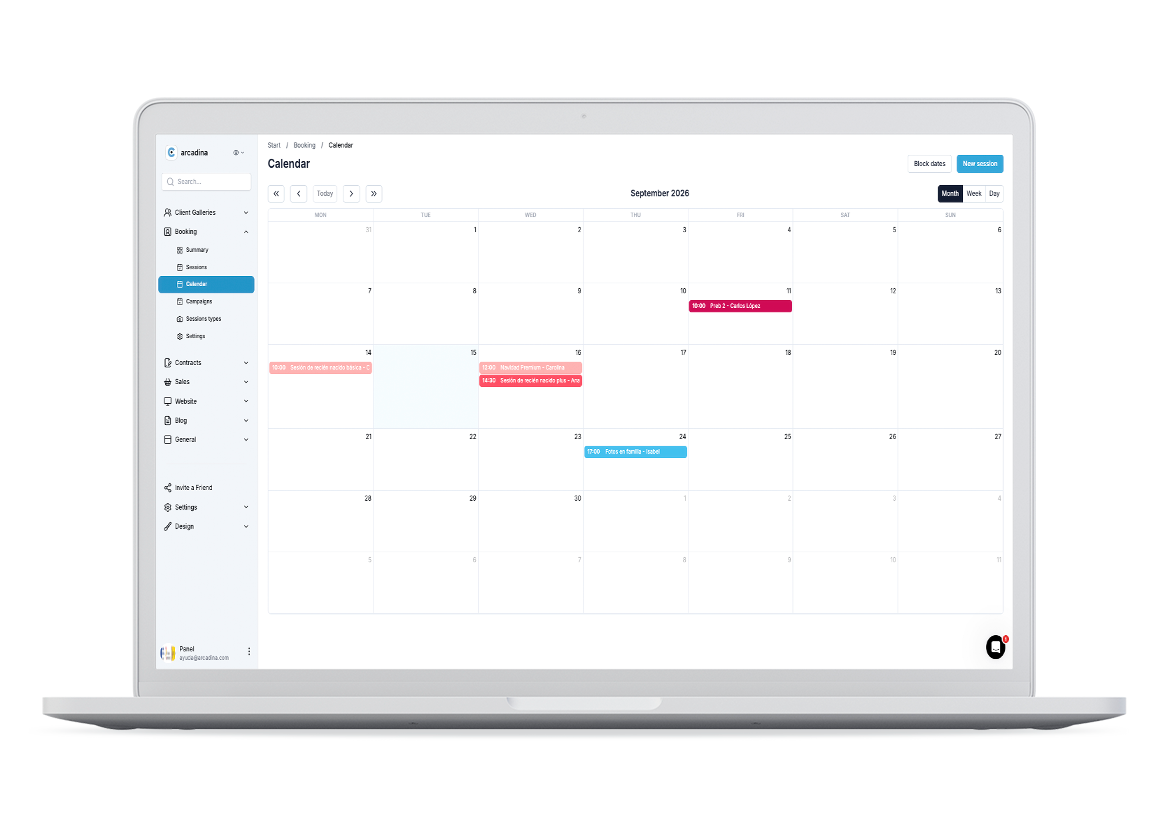
If you already use an app to organize your day-to-day schedule, you don’t need to constantly check two different calendars. Booking’s calendar can be synced with external calendar managers like Google Calendar or Apple Calendar. This way, you can keep track of your scheduled sessions and check your calendar from the devices you normally use.
This synchronization is especially useful when you spend many hours away from the studio or work at different locations. The goal is for Booking to become the tool that organizes your clients’ reservations without forcing you to completely change the way you usually check your schedule.
Use your booking calendar to manage payments as well

Another important decision when preparing your sessions is to determine how you want to handle payment. Depending on the type of photo shoot, you can set up a booking with a specific amount and manage the payments associated with the session through Booking.
This option is particularly useful for campaigns with limited spots, as it allows you to link the booking of a session to its corresponding payment. The strategy may vary depending on your business. You don’t have to apply the same terms to a wedding, a newborn session, or a Christmas campaign. Analyze the value of the photo shoot, the demand, and the terms you want to set before deciding how to handle payment. The important thing is that the process is clear to the client from the start.
Manage sessions that have already been booked through Booking
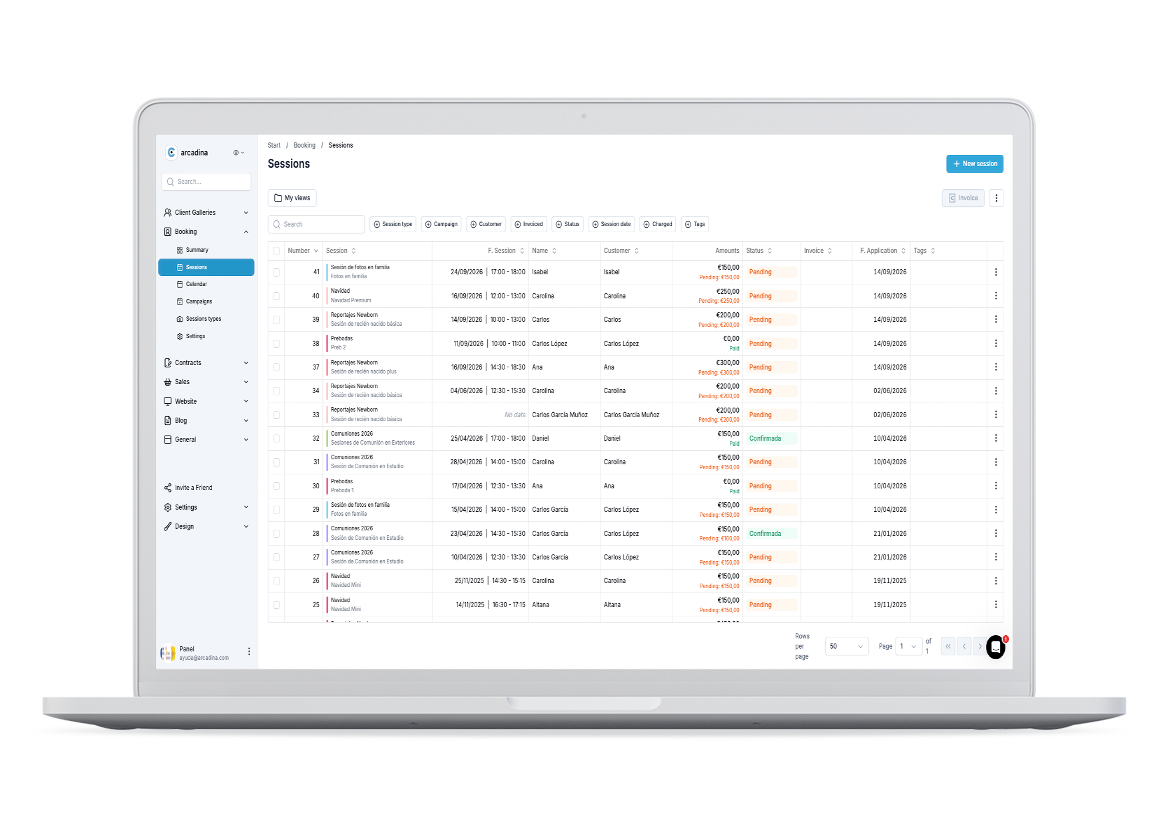
Working with your booking calendar doesn’t end when the client selects a date. From the “Sessions” section in Booking, you can view your bookings and use different filters to quickly locate photo shoots based on their request date or shoot date.
You can also modify certain details of a booking, such as its date and time, and manage sessions that have been booked but don’t yet have a specific date. This can be useful for certain types of jobs where you want to finalize the booking first and then agree with the client on when the photo shoot will take place.
Centralizing all this information gives you a much clearer overview of upcoming jobs and helps you avoid relying on separate notes, conversations, or calendars.
Keep the client informed before the session

Once the booking is confirmed, there are still several points of contact with the client before the day of the photo shoot arrives. From Arcadina, you can use email, and if you have the WhatsApp service available to communicate with people who have booked a session through your website, everything will be much faster and smoother.
You can use these communications to confirm information, remind someone of an appointment, or provide specific instructions before the interview. Additionally, having pre-written templates will allow you to streamline these messages without having to write them from scratch every time. Automation doesn’t have to make the relationship any less personal. It’s about using tools for repetitive communications and reserving your attention for those conversations where you can truly provide a more personalized touch.
Take Advantage of the Booking Calendar for Your Most Important Campaigns
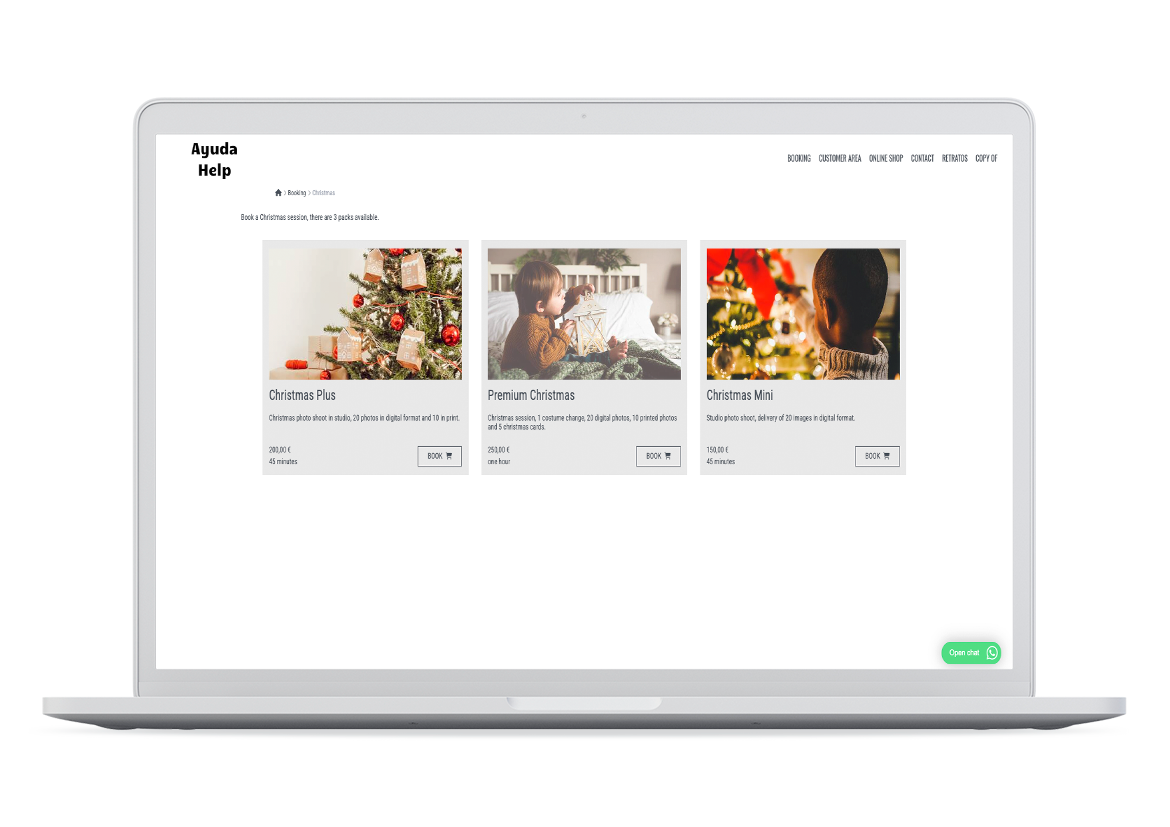
A booking calendar for photographers can be especially effective when you have to manage many sessions in a short period of time. Christmas is a good example. You can create the campaign, set up different types of sessions, determine the days you’ll be working, and allocate the available time slots.
The same strategy can be applied to First Communions, Mother’s Day, summer sessions, back-to-school, mini-sessions, or any campaign with limited dates and spots. In addition to making organization easier, having a dedicated booking page allows you to direct traffic from your social media, newsletter, or website to it.
This way, promotion and booking become part of the same process: you present the campaign, direct interested clients to the corresponding page, and there they can view the options and availability.
5 Tips for Getting the Most Out of Your Photography Booking Calendar

After setting up Booking, it’s worth periodically reviewing how you’re using it.
- Don’t post more time slots than you actually want to fill. Create a schedule that also sets aside time for editing, managing your business, and resting.
- Simplify your offerings. If you have too many similar types of sessions, it can make it harder for clients to choose.
- Always update external bookings. Immediately add sessions booked by phone, email, WhatsApp, or in-studio.
- Prepare campaigns in advance. Setting up Christmas or First Communion packages before you start promoting them will allow you to direct clients straight to a page ready for booking.
- Review the experience as if you were a client. Periodically visit your booking page and check that the descriptions, prices, dates, and times are clear and easy to understand.
These are small adjustments, but they can make the difference between using Booking simply as a calendar or truly integrating it into your business management.
Organize your upcoming sessions with Arcadina’s booking calendar
A well-configured booking calendar for photographers helps you gain a clearer view of your schedule, better organize your campaigns, and make it easier for your clients to book your photo sessions.
With online session booking, you can bring together in one place both the sessions booked through your website and those received through other channels, set your availability, manage payments, and keep the details of each booking organized. And all of this is part of a suite of tools designed to help you manage different aspects of your professional practice from a single platform.
If you’d like to discover the other features available to you, check out our guide to the new Arcadina and learn how Booking, client galleries, contracts, quotes, invoicing, the website, and other tools for photographers all work together.
Arcadina goes with you
Fulfil your dreams and develop your career with us. We offer you to try our web service free for 30 days. And with no commitment of permanence.
Arcadina is much more than a website, it is business solutions for photographers.
If you have any queries, our Customer Service Team is always ready to help you 24 hours a day, 7 days a week. We listen to you.

Free trial · No card · No lock-in
Build your photography business online
Sales with no commission · Everything in one plan · 30-day free trial, no card